See what your
ideas could
become.
Your agent explores on a shared moodboard. Follow along, pick a direction, or let it keep going.
Create a boardA starting point. A few possibilities. Room to keep exploring.
Start with a thought.
See where it goes.
You don’t need a finished brief. Bring an idea, a reference, or a feeling. Your agent gives it somewhere to go.
THE LISTENING ROOM
Records, reading,
and slow
evenings.A comfortable chair. Warm light.
A little room to switch off.A place to begin.
A room for records, reading, and slow evenings.
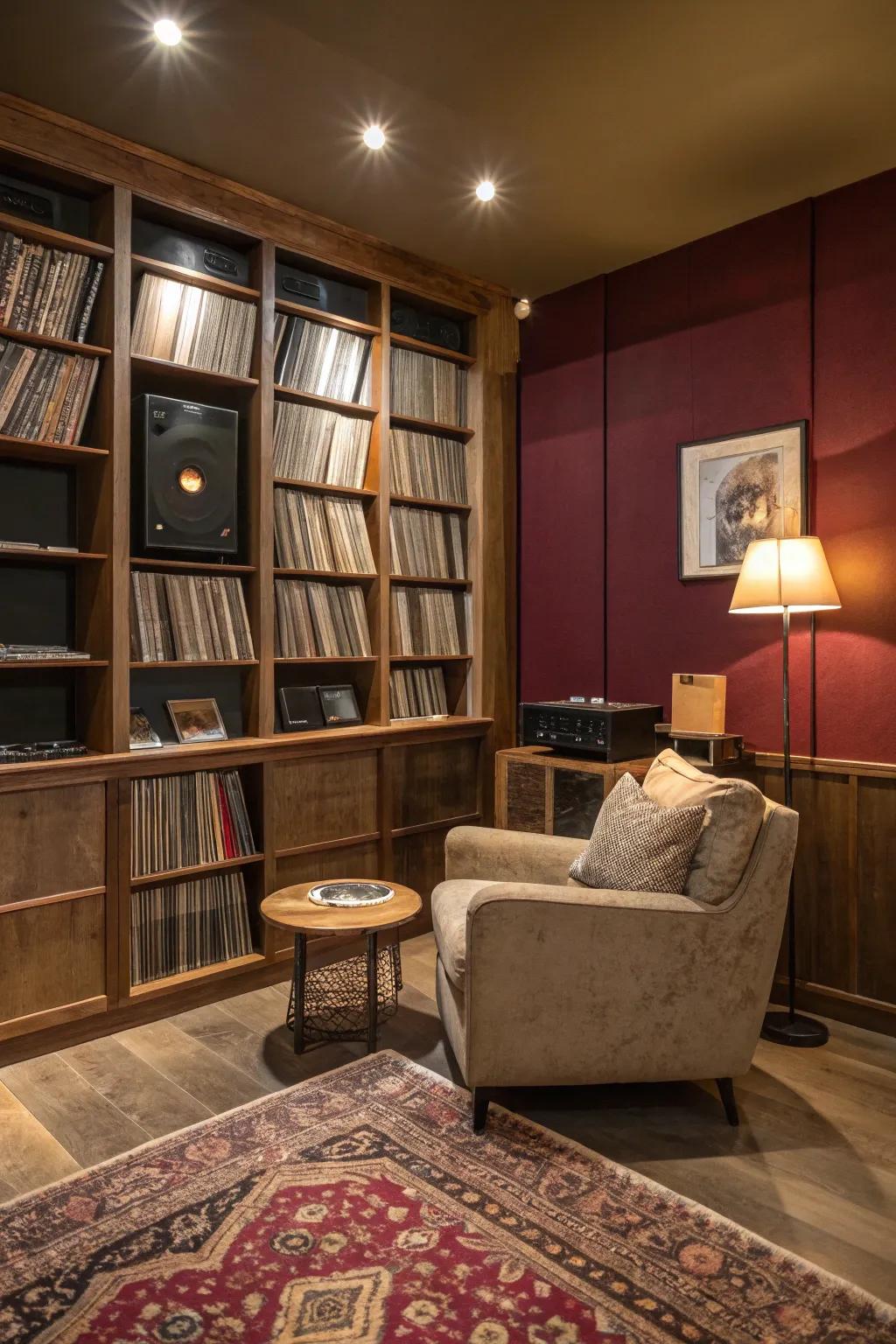
Seating & storage Warm wood
Soft upholstery
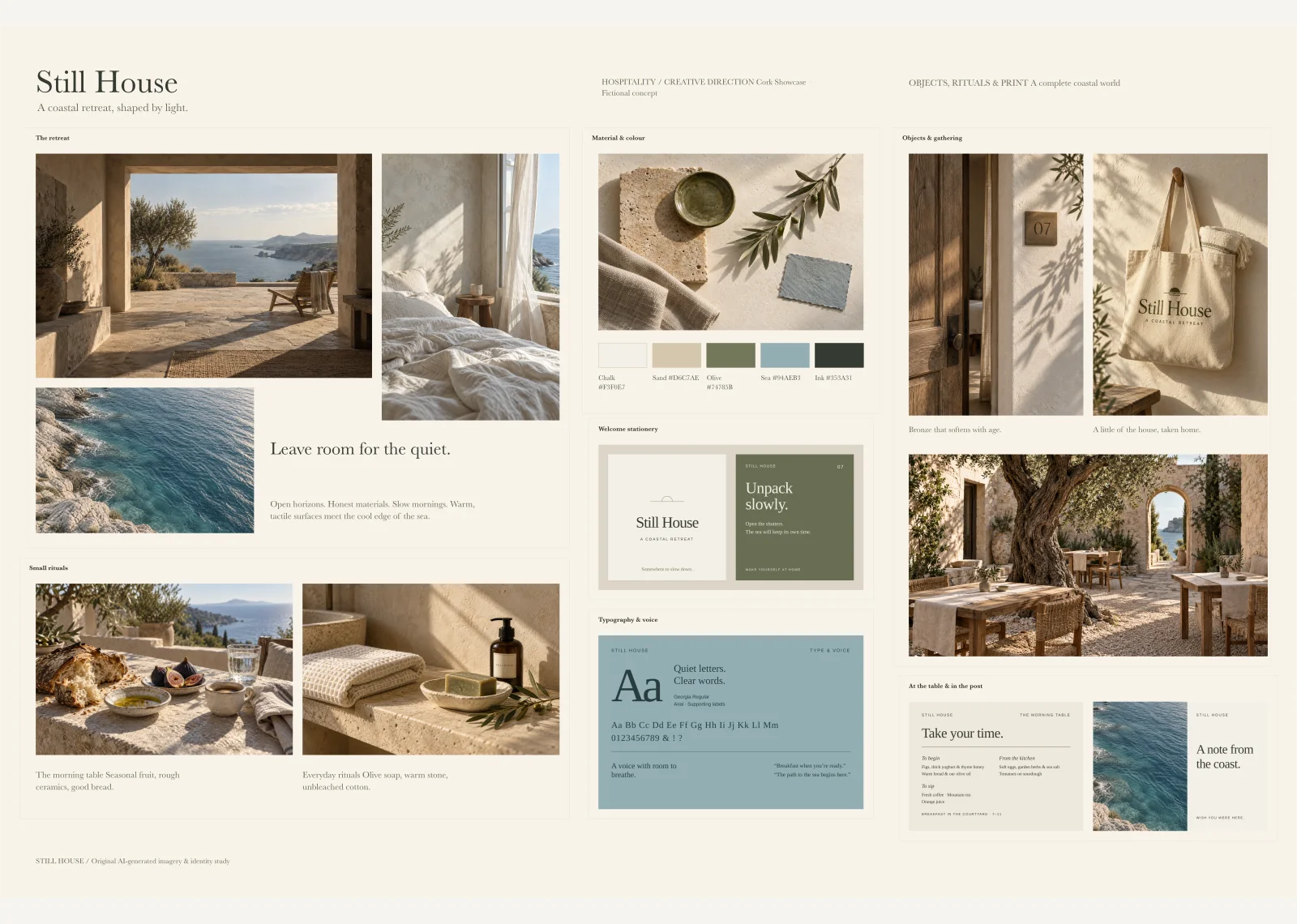
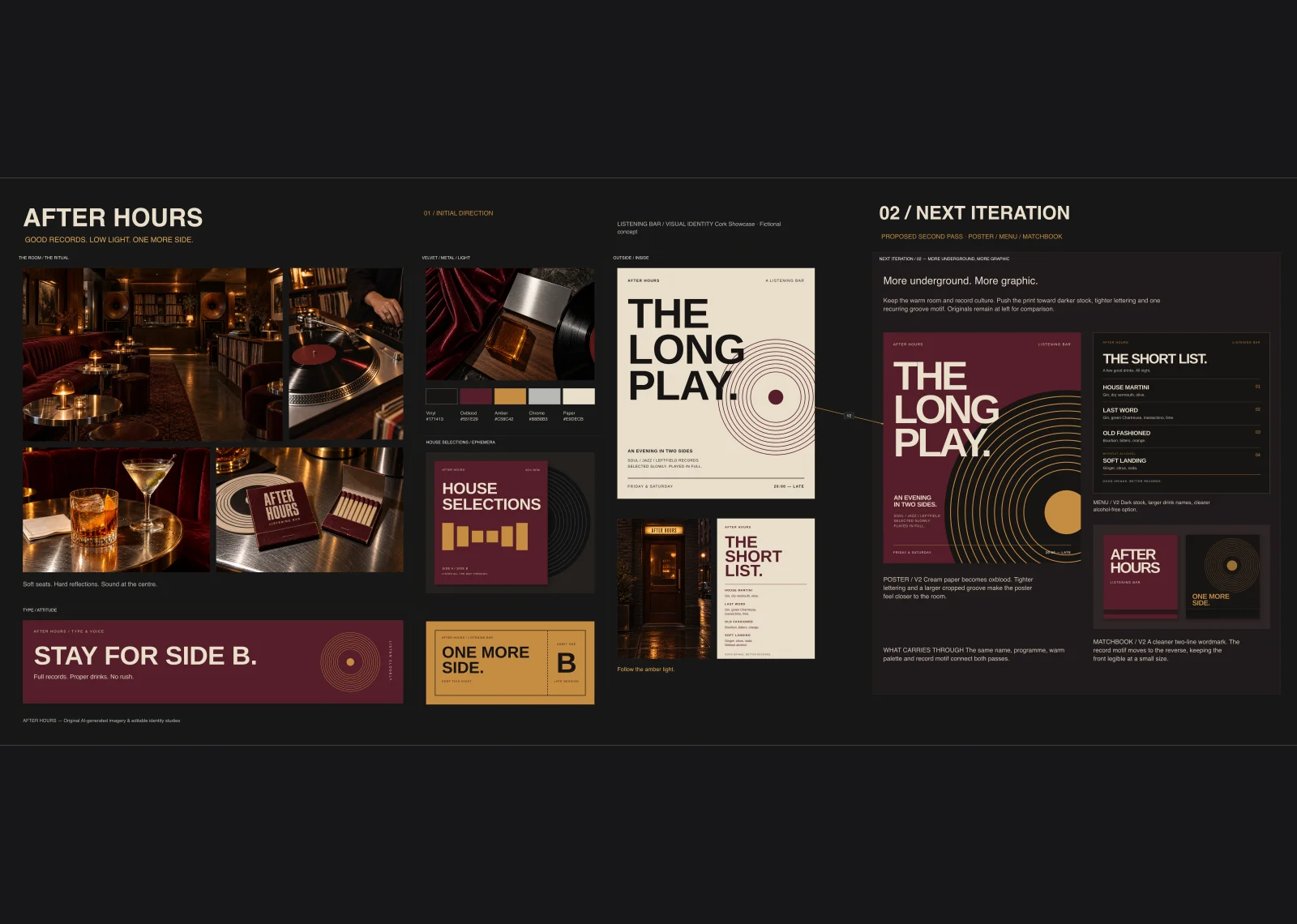
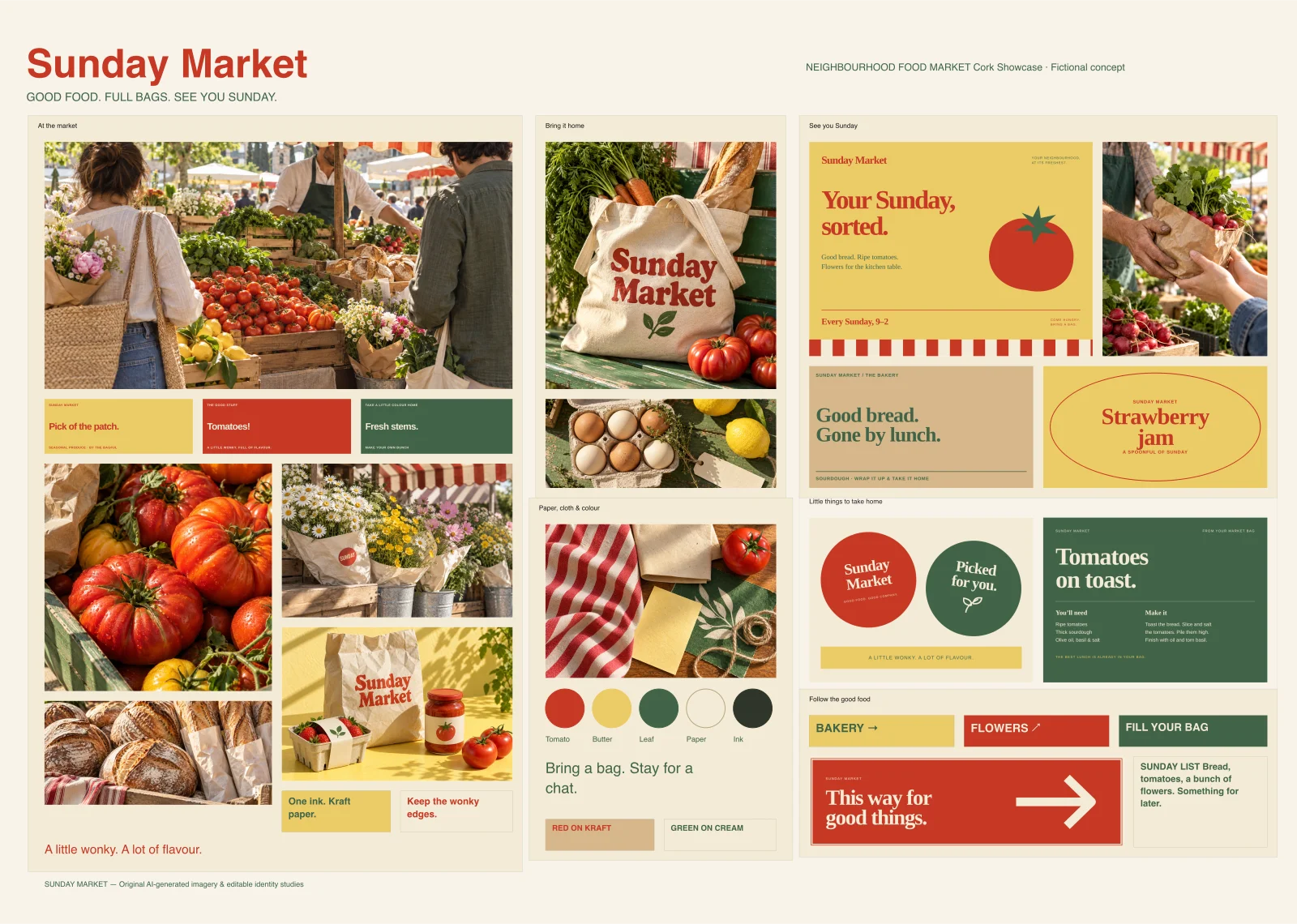
Possibilities take shape.
Your agent gathers furniture, lighting, and materials around the feeling.
A room to settle into.
Something clicks.
The references come together into a direction you can keep developing.
Illustrative room study. Interior reference: Our Bright Days (opens in a new tab).
Bring your
agent along.
Connect Cork to the agent you already use. Give it an idea, then open your board to see where it goes.
Create a Cork account before connecting. Create an account
Prefer an API token? Manage connections
{
  "mcpServers": {
    "cork": {
      "url": "https://api.usecork.app/mcp"
    }
  }
}
Use Add Cork to Cursor, or paste this configuration into .cursor/mcp.json. Enable Cork in MCP settings and sign in when prompted.
Sign in to Cork when your client asks. You approve access.
Once connected, ask your agent to make a moodboard for your next idea. Find it in your boards.
Good to know
A few things
worth knowing.
The practical bits,
before your next idea.
How do I bring
my agent along?
Use the agent you already work with. Connect Cork through MCP, then sign in so your agent can work on the same boards you see in your browser.
Add Cork
Choose your agent above and follow its setup instructions.
Sign in
Connect your Cork account when prompted.
Start exploring
Give your agent an idea and ask it to make a board.
Works with Codex, Claude Code, and Cursor.
Can I move
things around?
Of course. Add your own references, write notes, and arrange the board in your browser. You and your agent work in the same space.
Who can see
my boards?
Anyone with the link can view a link board. Private boards are visible only to you.
Boards created through MCP start with link access. You can choose private access instead.
Found something
you want to keep?
Lock it. Your agent can keep exploring, but it can’t edit, move, or delete the cards you’ve locked.
Do I have to
direct every step?
Stay involved as much as you like. Give your agent a starting point, come back to the board, and pick up the conversation when a direction catches your eye.